




- Life Phases
Discover meaningful conversations with industry experts
Perspectives that inform and inspire
Visit Open Dialogue Plan Life Goals
Discover meaningful conversations with industry experts
Perspectives that inform and inspire
Visit Open DialogueLearn Financial ConceptsDiscover meaningful conversations with industry experts
Perspectives that inform and inspire
Visit Open DialogueFinancial FirstsDiscover meaningful conversations with industry experts
Perspectives that inform and inspire
Visit Open DialogueBlogsDiscover meaningful conversations with industry experts
Perspectives that inform and inspire
Visit Open DialoguePlan-o-meterDiscover meaningful conversations with industry experts
Perspectives that inform and inspire
Visit Open DialogueOpen Dialogue PodcastDiscover meaningful conversations with industry experts
Perspectives that inform and inspire
Visit Open Dialogue













Introducing Apple Pay
Apple Pay is an easy, secure and private way to pay.
With Apple Pay, you can make purchases with your Axis Bank Credit Card using your iPhone or
Apple Watch. Pay in stores, online and in apps, just like you would with your physical card.
Features & Benefits
Apple Pay on one. Apple Pay on all.
Apple Pay is built into iPhone and Apple Watch. If you add your Axis Bank Credit Card to Apple Wallet on iPhone, you’ll have the option to easily add it to your Apple Watch in one easy step.
Shop in store. Online. Or in apps.
Apple Pay is accepted by millions of merchants around the world. Just look for Apple Pay logo or the contactless payment symbol at checkout and pay with your Axis Bank credit card.
Designed to be secure. So only you can pay.
Apple Pay transactions require authentication through your device's built-in security features, including Face ID, Touch ID and your passcode. Your credit card number is never shared with merchants by Apple or stored on Apple servers. If you misplace your iPhone, you can quickly mark it lost on Find My to suspend your Axis Bank credit card.
Tap. Pay. Done
Apple Pay lets you skip entering your address or CVC/CVV code at checkout, so you can pay with your Axis Bank credit card with a simple glance or touch.
The card benefits you love. With Apple Pay
When you use your Axis Bank credit card with Apple Pay, you will earn the benefits and rewards you love, just like you would with your physical card.
How to set up Apple Pay
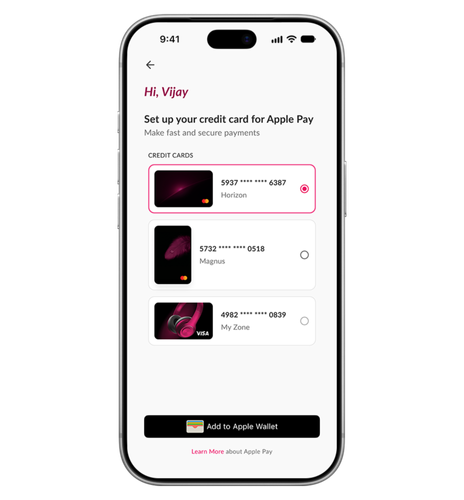
Mobile Banking App, open
- 01
Click on “Set up now”.
- 02
Log in to the Mobile Banking App, open.
- 03
Select your eligible credit card and tap “Add to Apple Wallet”.
- 04
Follow the instructions to complete the set up.
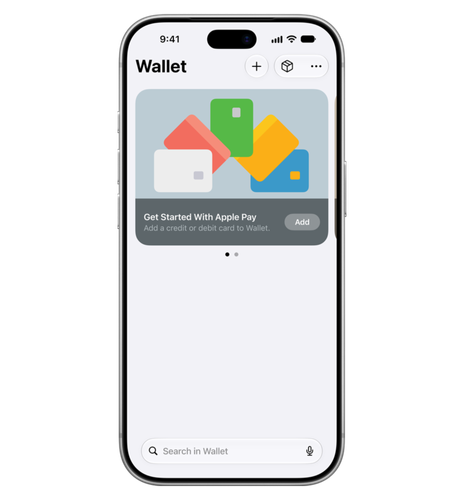
Apple Wallet
Add your Axis Bank credit card in a few steps.
- 01
Open Apple Wallet on your iPhone and tap the Add (+) button.
- 02
Hold your eligible credit card to the back of your iPhone or enter the card details manually.
- 03
Verify your card.
- 04
Follow the instructions to complete the set up.
How to pay using Apple Pay
All you need to pay is your Apple device. You can easily pay with your Axis Bank credit card using Apple Pay anywhere you see Apple Pay logo or the contactless symbol at checkout.
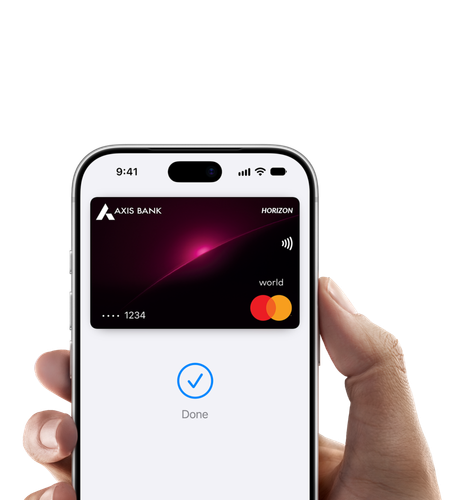
In Stores
To use Apple Pay in stores, ensure “Tap and Pay” is enabled in Manage Usage Limits on the Mobile Banking App, open.
- 01
Double-click the side button on your iPhone.
- 02
Authenticate using Face ID, Touch ID or your passcode.
- 03
Hold your device near the contactless payment terminal.
- 04
When you see the “Done” checkmark, you’re all set.

Online & In Apps
To use Apple Pay online or in apps, ensure “Online Shopping” option is enabled in Manage Usage Limits on the Mobile Banking App, open
- 01
Tap the Apple Pay button at checkout.
- 02
Review your payment, contact, billing and delivery details.
- 03
Authenticate using Face ID or your passcode.
- 04
When you see the “Done” checkmark, you’re all set.
Frequently Asked Questions
-
What is Apple Pay
-
Setup
-
Eligibility
-
How to Pay
-
Security
-
Fees, Limits, and Rewards
-
Card and Device Management
-
Troubleshooting
-
Refunds and Disputes
Apple Pay is an easy, secure and private way to pay in stores, online and in your favourite apps. It is available with eligible Axis Bank Visa and Mastercard Credit Cards on your iPhone, Apple Watch and iPad.
Apple Pay is built into iPhone, Apple Watch, iPad and Apple Vision Pro. You can set it up in a few simple steps and use your eligible Axis Bank Credit Card to make purchases online, in apps and in person.
You can add your Axis Bank credit card to Apple Pay as follows:
Through the Mobile Banking App, open:
1) Open the Mobile Banking App, open and log in.
2) Select the credit card that you want to add.
3) Tap ‘Add to Apple Wallet’.
4) Follow the instructions displayed on the screen.
5) After the card is added, you will see a ‘Card Added’ confirmation message.
On iPhone:
1) In Apple Wallet, tap the Add Card button.
- Tap Cards Found For You to add a card you used previously.
- Tap Debit or Credit Card to add a new card.
2) Tap Continue.
3) To add your card, tap or hold your card close to your iPhone. To manually add your card, tap Enter Card Details Manually and follow the on-screen instructions.
On Apple Watch:
If you have a paired Apple Watch, you have the option to add the card to your watch.
1) On your paired iPhone, open the Apple Watch app.
2) In the My Watch tab, tap Wallet & Apple Pay.
3) Tap Add Card, then choose Debit or Credit Card (new card) or Cards Found For You (previously used card).
4) Tap Continue.
5) To add your card, tap or hold your card close to your iPhone, or position it in the frame to scan it. To manually add your card, tap Enter Card Details Manually and follow the on-screen instructions.
On iPad:
1) Open Wallet & Apple Pay settings, go to Settings, then tap Wallet & Apple Pay.
2) Select Add Card and follow the on-screen steps.
3) Verify your information with Axis Bank. You may be asked to provide additional details.
If tapping or holding your card near your iPhone does not add it, you can try scanning it with your camera in good lighting while holding your card steady. If that still does not work, enter your card number, expiry date, and CVV manually.
If your card cannot be added to Apple Pay, please call Axis Bank customer care at 1800 4030 or 1800 8911 (Toll Free). Our support team will investigate the issue and guide you through the next steps.
This additional security step protects your account and is required before your card can be added to Apple Pay. You can complete your verification via SMS OTP or an in-app verification from your Mobile Banking App, open to verify. If the issue persists, call Axis Bank Customer Care on 1800 4030 or 1800 8911 (Toll Free).
Yes. If you leave the setup before completing the verification, open the Wallet app and select the card with the ‘Requires Verification’ status. Choose the verification method and complete the process. You cannot use the card with Apple Pay until the verification is complete.
Yes. Add-on credit card holders can log in to the Mobile Banking App, open with their own credentials and add their card to Apple Pay.
Yes. If your Axis Bank credit card has been issued and is visible in the Mobile Banking App, open you can add it to Apple Pay before receiving the physical card. Ensure that online transactions are enabled for the card and follow the steps to add it to Apple Pay. Until the physical card is delivered, Apple Pay can be used only for online transactions of up to ₹5,000 per transaction.
Apple Pay is available on all Axis Bank Visa and Mastercard Credit Cards.
For security reasons, use Apple Pay only on your own Apple devices. If you want a family member to use your Axis Bank credit card, you can apply for an add on credit card in their name. The family member can then add the card to an eligible device.
To use Apple Pay, you need:
- an iPhone with iOS 18 or later
- an iPad with iPadOS 18 or later
- an Apple Watch with watchOS 11 or later
On Mac models without built-in Touch ID, you can complete your purchase using Apple Pay on your compatible iPhone or Apple Watch: on your iPhone, go to Settings, tap Wallet & Apple Pay, and then turn on Allow Payments on Mac.
Apple Pay is accepted by millions of merchants around the world, in person, online, or in apps. To use Apple Pay to pay with your Axis Bank credit card, simply look for the Apple Pay or contactless payment symbol at checkout.
No. Contactless payments made with Apple Pay in a store do not require mobile data or Wi Fi.
To use the default card:
1) On an iPhone with Face ID, press the side button twice.
2) If prompted, authenticate using Face ID or enter the device passcode.
3) On an iPhone with Touch ID, press the Home button twice.
To use another card:
1) Tap the default card to view the other cards.
2) Select another card and authenticate the payment.
Hold the top of the iPhone near the contactless payment reader until ‘Done’ and a tick appear on the screen.
Ensure that contactless transactions are enabled on the Axis Bank credit card before making a payment in a store.
1) Double-click the side button.
2) Your default card opens automatically. Scroll down to choose another card, if required.
3) Hold the display of your Apple Watch near the contactless reader until you feel a gentle tap and hear a beep.
Please ensure that contactless transactions are enabled on your Axis Bank Credit Card before using Apple Pay for in-store purchases.
When ‘Done’ and a tick appear on the device, the payment has been completed. You may also receive transaction notifications from Axis Bank by SMS and email after the payment is processed. You can view the transaction history in Apple Wallet.
No. Apple Pay uses Face ID, Touch ID, or your device passcode to authenticate each payment. Your spending limits are governed by the Manage Usage settings set on your card in the Mobile Banking App, open.
The default card is the card selected during setup. If no card was selected, the first card added becomes the default card.
To use another card while making a payment:
1) Press the side button twice.
2) Tap the default card.
3) Swipe left or right and select another card.
4) Authenticate the payment.
To change the default card, go to Settings, select Wallet & Apple Pay and then select Default Card.
Yes. Apple Pay is accepted by millions of merchants around the world, in person, online, or in apps, so you can use it to pay with your Axis Bank Credit Card when travelling internationally, wherever you see the Apple Pay or contactless symbol at checkout.
Apple Pay uses the security features built into your Apple device to keep your purchases private and secure. All transactions require face ID, touch ID or your passcode on your iPhone, iPad or Mac, and a double-click of the side button on your Apple Watch. These features are designed so only you can make purchases with Apple Pay. Your actual card number is never stored on your device or Apple servers, and when you pay, your card number is never shared by Apple with merchants, keeping these details hidden and offering an additional level of protection against fraud.
If you notice an unauthorised Apple Pay transaction, call Axis Bank on 1800 4030 or 1800 8911, or raise it through the Mobile Banking App, open. Keep the transaction date, amount and merchant name available when reporting the transaction. Axis Bank will review the transaction through the applicable fraud and dispute process.
Yes. Axis Bank sends you SMS and email notifications for every approved or declined Apple Pay transaction.
No. Apple Pay is completely free for Axis Bank customers. There is no setup fee, no transaction fee, and no annual charge for using Apple Pay.
Your Apple Pay spending limits are the same as the contactless transaction limits on your physical Axis Bank Credit Card. To check or update your card limits, log in to the Mobile Banking App, open and go to Manage Usage Limits, or visit www.axis.bank.in/ccusage.
Yes. Every Apple Pay purchase earns the same EDGE Reward points, cashback, and card benefits as a physical card purchase, at your card's standard reward rate. Apple Pay is simply a different way to present your Axis Bank Credit Card. The underlying card and its benefits remain unchanged.
Yes. Once your Apple Pay transaction is completed, you can convert eligible purchases to EMI through the Mobile Banking App, open. Open the app, go to Credit Cards, select your card, find the transaction, and tap 'Convert to EMI'. Choose your preferred tenure and confirm.
Yes. If your Axis Bank credit card expires or is replaced, you will need to remove the old card and add the new or renewed card to Apple Pay again. The Mobile Banking App, open will show an 'Add to Apple Wallet' option once your new or renewed card is active.
No. Cards added to Apple Pay do not transfer automatically to a new device, including when the device is restored from a backup. Add the Axis Bank credit card to Apple Pay on the new device through the Mobile Banking App, open or the Wallet app.
Cards added to Apple Pay on an Apple Watch are removed when the watch is unpaired from the iPhone.
Take the following steps:
1) Go to iCloud.com and sign in.
2) Open Find My and select the lost iPhone.
3) Mark the device as lost using the option displayed in Find My.
4) To report or block the Axis Bank credit card, use the approved Axis Bank card blocking service or call Axis Bank on 1800 4030 or 1800 8911.
If the physical credit card is blocked, transactions through Apple Pay may also be restricted. Report a lost or stolen card to Axis Bank immediately so that the card can be blocked and the risk of unauthorised transactions can be reduced.
Call Axis Bank immediately on 1800 4030 or 1800 8911 (Toll Free) to report any suspicious transactions, and we will investigate through the standard dispute process. Our fraud team will review the transactions. Please note that Apple Pay requires face ID, touch ID, or your device passcode for every payment.
You can remove a card from Apple Pay as follows:
On iPhone:
1) In the Wallet app, tap the card you want to remove.
2) Tap the More button, then tap Card Details.
3) Scroll down and tap Remove Card.
On iPad:
1) Go to Settings > Wallet & Apple Pay.
2) Tap the card you want to remove.
3) Tap Remove Card.
On Apple Watch:
1) On your Apple Watch, tap the Wallet app.
2) Tap the card you want to remove.
3) Scroll down and tap Remove.
If your device is lost, you can also remove a card by signing in to iCloud.com, or manage your Axis Bank Credit Card tokens directly via cardtoken.axis.bank.in.
Apple Pay can only be used at merchants that support contactless payments. If your payment is declined or does not go through, first check whether the payment terminal displays the contactless payment symbol and ensure you have opened Apple Wallet (or your default card) by double-clicking the side button before holding your iPhone near the reader. You may also review your card's Manage Usage settings and transaction limits in the Mobile Banking App, open to ensure no controls are restricting the transaction. If your iPhone displays "Done" but the merchant reports that the payment was unsuccessful, check your SMS/email confirmation from Axis Bank or review your transaction history in the Mobile Banking App, open to verify whether the amount has been debited. If the amount has been debited but the merchant has no record of the payment, or if the issue persists, please contact Axis Bank customer care at 1800 4030 / 1800 8911 (Toll Free).
Check the following:
1) Confirm that the card is an eligible Axis Bank Visa or Mastercard credit card.
2) Confirm that the card is active.
3) Update the Mobile Banking App, open to the latest available version.
If the card still does not appear, call Axis Bank Customer Care on 1800 4030 or 1800 8911 (Toll Free).
The refund process is identical to a physical card purchase. Contact the merchant directly and request the refund with the date, amount, and reason. The merchant processes the refund, which typically appears as a credit on your Axis Bank Credit Card statement within 5 to 7 business days. If the refund credit doesn't appear after 7 business days, call Axis Bank on 1800 4030 or 1800 8911 (Toll Free) and we'll raise a transaction enquiry.
If you have a dispute regarding an Apple Pay transaction, you can visit the Axis Bank website to review the dispute resolution process, raise a dispute through the Mobile Banking App, open or contact Axis Bank customer care at 1800 4030 or 1800 8911 (Toll Free) for assistance. When raising a dispute, please keep details such as the transaction date, transaction amount, and merchant name readily available so we can investigate your request efficiently.
Terms & Conditions of Apple Pay
- To use Apple Pay you need a supported card from a participating card issuer. During the initial setup of the card for Apple Pay, an additional factor of verification like OTP or Bank App Verification may be required by your card issuer. To check if your card is compatible with Apple Pay, contact your card issuer.
- Axis Bank Credit Cards can currently be used with Apple Pay on Apple devices except Mac.
- Apple Pay is not available in all markets. View Apple Pay countries and regions.
- Features are subject to change. Some features, applications, and services may not be available in all regions or all languages and may require specific hardware and software. For more information, see Feature Availability.